Using the Worklog Calendar
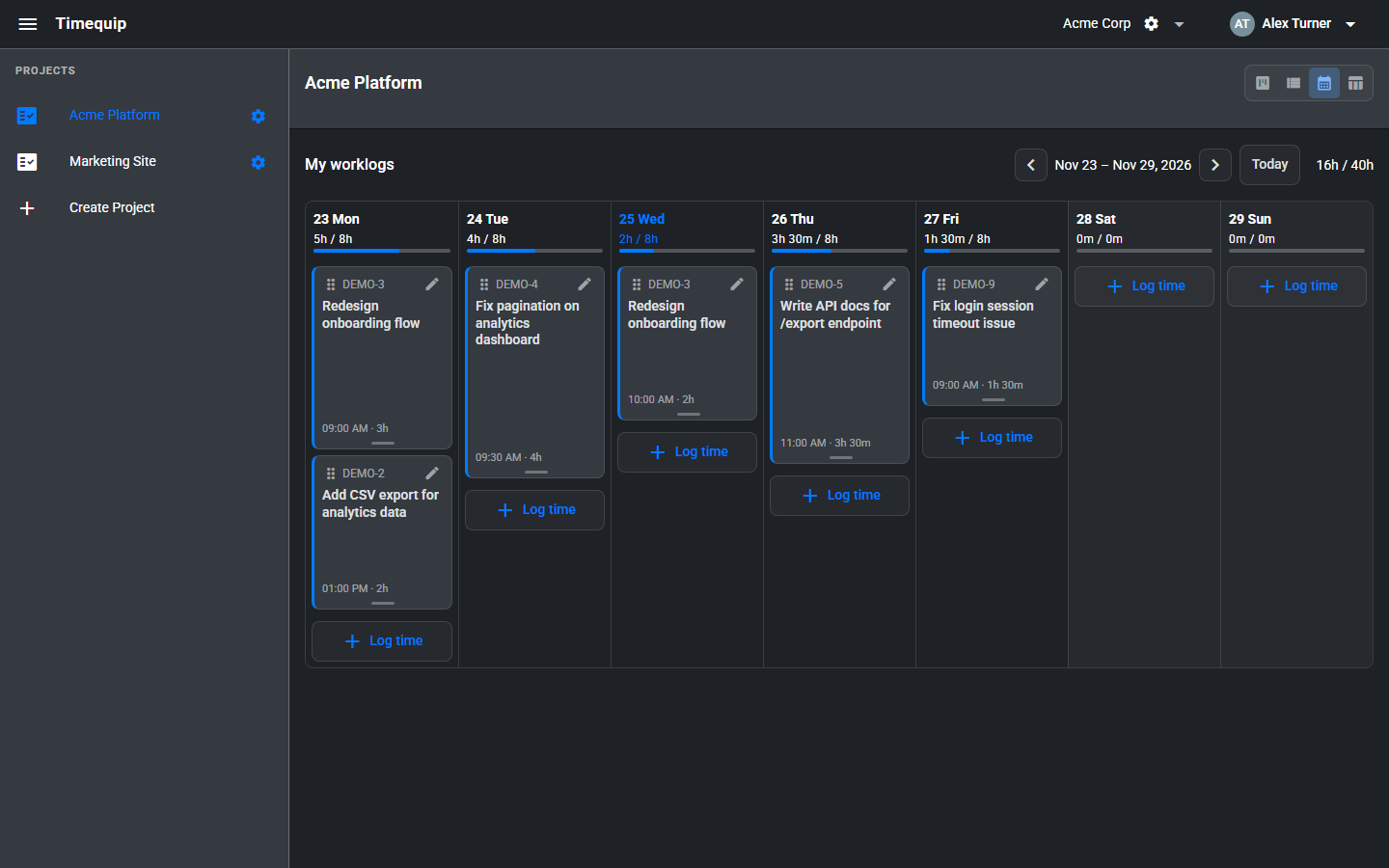
Open a project and select Calendar in the board header to see your worklogs for that project. Use the arrows to browse weeks and Today to return to the current week.
Log time for a task
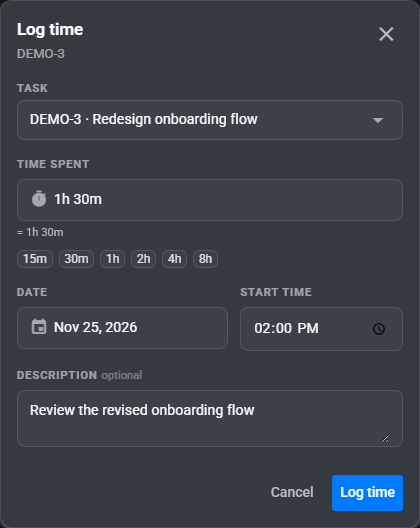
- In the column for the day you worked, select Log time.
- Find the task by title or key.
- Enter the time spent or select a duration preset. Check the date and start time and add a description if useful.
- Select Log time to save the entry.
Move, resize, or edit a worklog
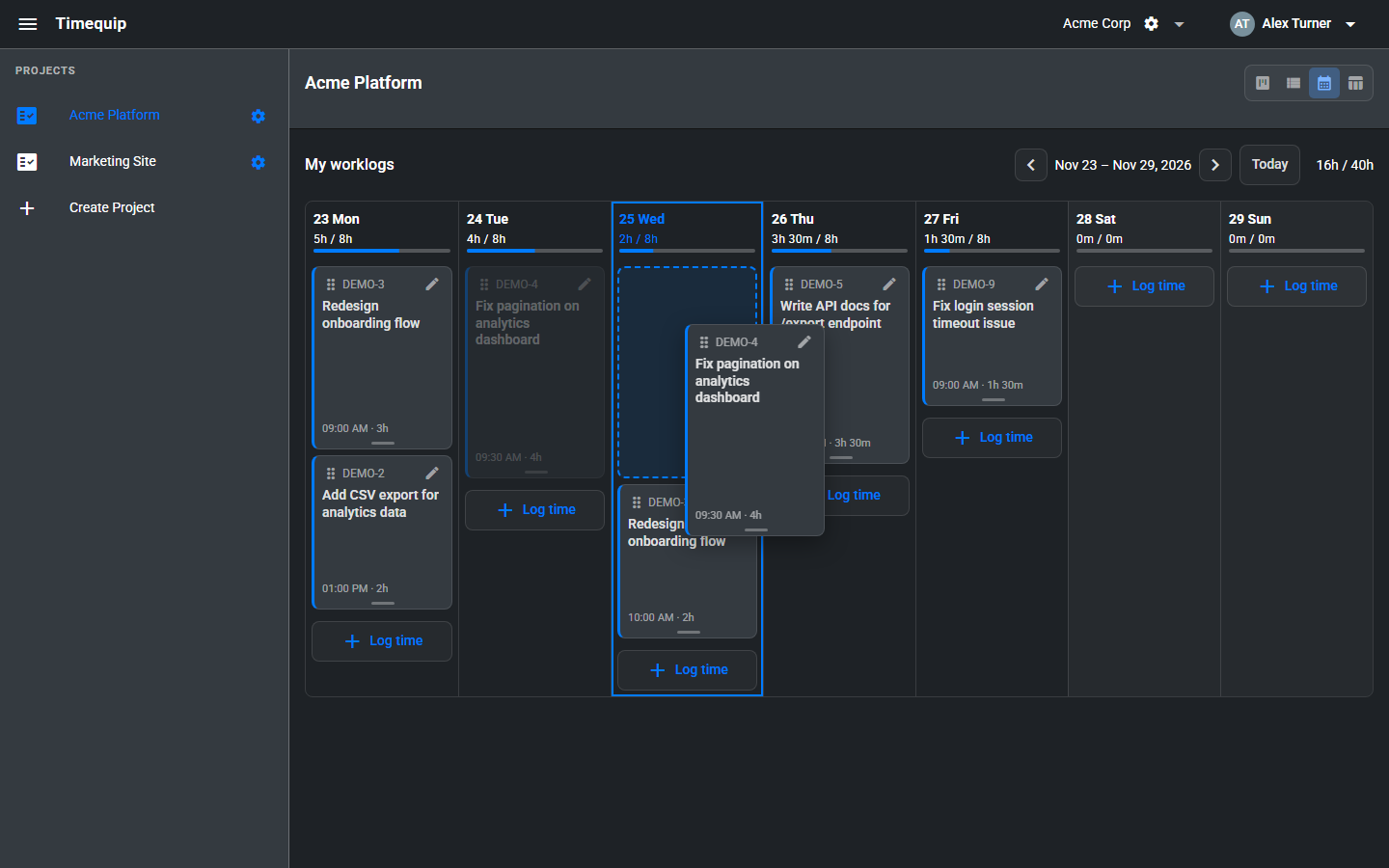
- Move to another day. Drag the grip next to the task key to a different column. The dashed outline shows where the worklog will appear. The move keeps its start time and duration.
- Change the duration. Drag the bottom edge of the worklog to adjust the time spent in 15-minute steps.
- Edit the details. Select the pencil to change the date, start time, duration, or description. This also works on a phone.
- Open the task. Select the worklog title to open task details.
Set working hours for the account
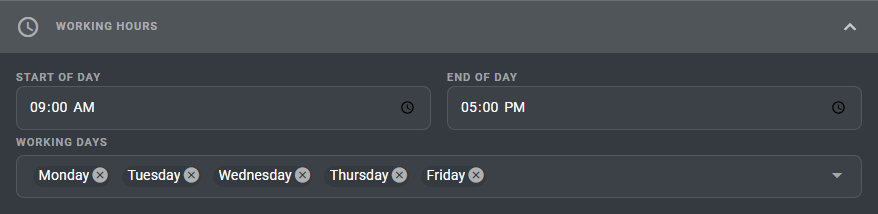
Account owners and admins can open Account settings → Working hours, choose the start and end of the workday and the working days, and select Save changes. The schedule applies to all projects in the account. The default schedule is Monday through Friday, 09:00–17:00. Days outside the schedule have a zero target and can still contain worklogs.
For task management views, see Using Kanban, List, and Table Views.