Logging Time on Tasks
Timequip includes task-level time tracking, so team members can log the hours they spend on a task and see how that time breaks down by person. Time logs live inside the task details panel, in a dedicated Time Tracking section alongside attachments and comments.
Log time on a task
- Open a task and scroll to the Time Tracking section.
- Click Log time.
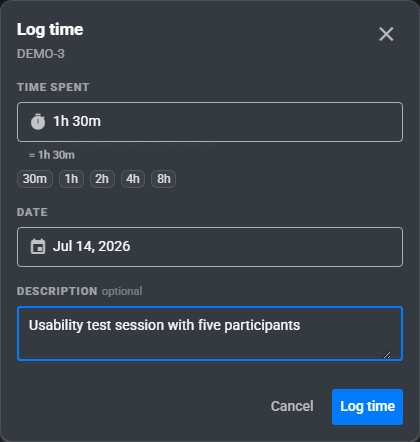
- Enter how long you worked. Accepted formats include 1h 30m, 90m, and 0.5h; 1d is treated as an 8-hour day, and a plain number such as 2 is read as hours. Use the preset chips (30m, 1h, 2h, 4h, 8h) for common durations.
- Pick the date the work was done. It defaults to today.
- Add an optional description of what you worked on.
- Click Log time to save the entry.
Review time spent on a task
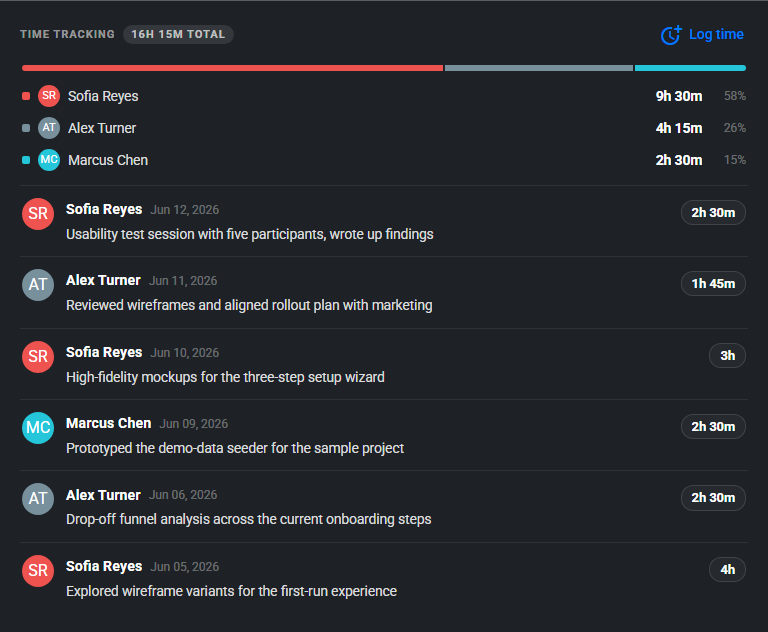
The Time Tracking section totals every logged entry and breaks the total down by user, with a colored share bar and a percentage next to each person, so a Leader or Editor can see at a glance who spent time on the task. Below the summary, every worklog entry is listed with its author, date, description, and duration, most recent first.
Edit or delete a time log
You can edit or delete your own time logs from the worklog list. Users with edit access to the task, typically project Leaders and Editors, can also edit or delete time logs entered by other users. See Project Roles: Leader, Editor, Viewer.
Billing restrictions
Creating new time logs can be restricted when the account billing status is past due or blocked. See Troubleshooting Billing Restrictions.