Using Kanban, List, and Table Views
Timequip gives each project three ways to review its tasks: Kanban, List, and Table. Choose the view that fits the work you are doing, whether you are following progress, reviewing priorities, or comparing task details.
Switch between views
- Open a project from the sidebar.
- In the page header, select Kanban, List, or Table.
- Use Search tasks or Filters to focus the tasks you need. Your current filters stay active when you switch views.
All three views show the same project tasks. Switching views changes how tasks are displayed; it does not change their status, assignee, or other fields.
Kanban: follow the workflow
Kanban groups tasks into project status columns, making it easy to see what is waiting, in progress, or complete. Users with edit access can drag a task between columns to change its status or reorder tasks within a column. See Using Workflows & Statuses for status configuration.
List: review tasks in one sequence
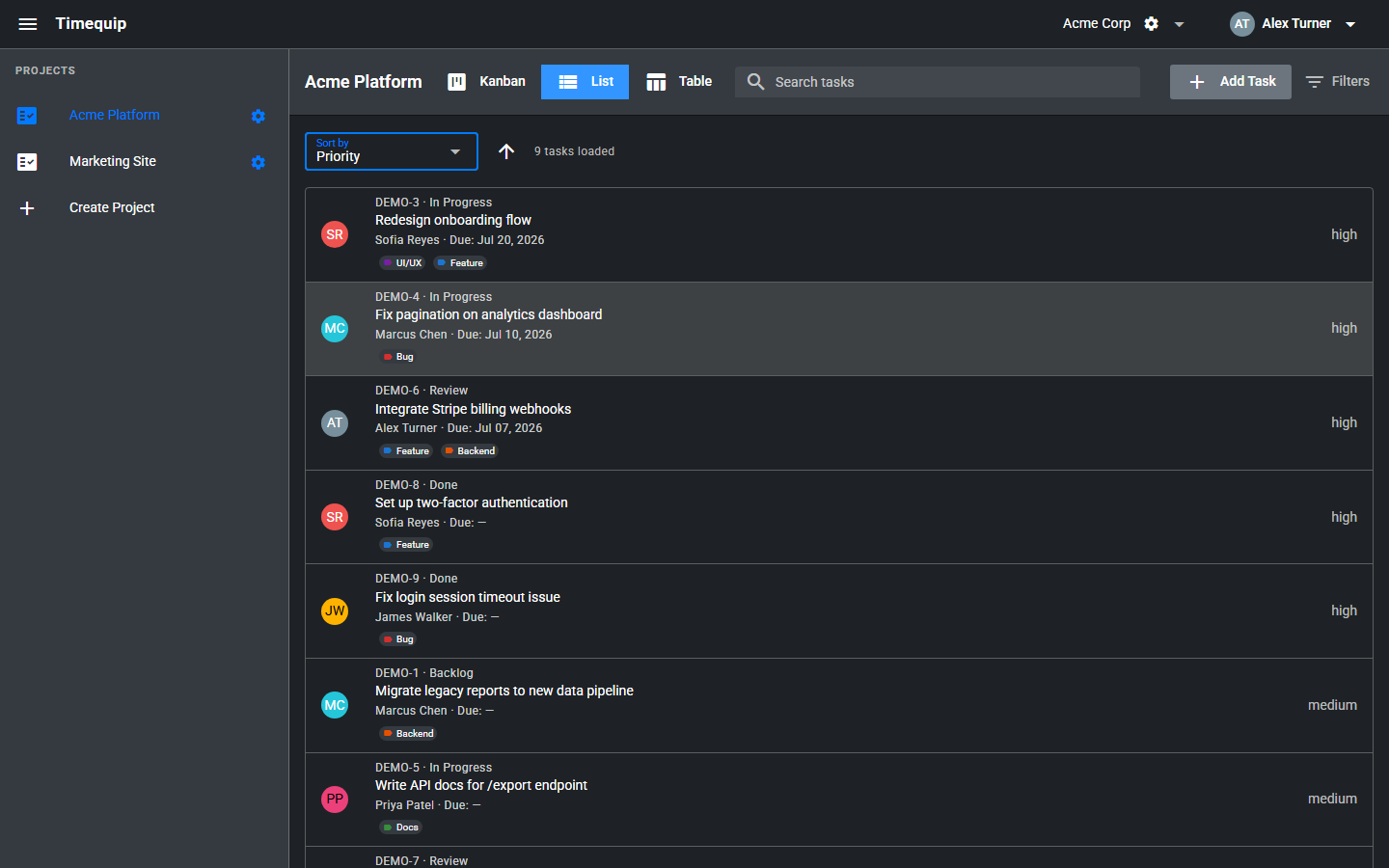
List brings tasks from every status into a single vertical list. Each row shows the task key, status, title, assignee, due date, tags, and priority when set. Use it to scan work across the project without moving between columns.
Sort tasks
- Open Sort by and choose Key, Title, Status, Priority, Assignee, Due date, Created, or Updated.
- Use the arrow beside the selector to switch between ascending and descending order.
Sorting is also available in Table view. Task keys sort numerically, so a key such as DEMO-2 appears before DEMO-10 in ascending order.
Table: compare task fields
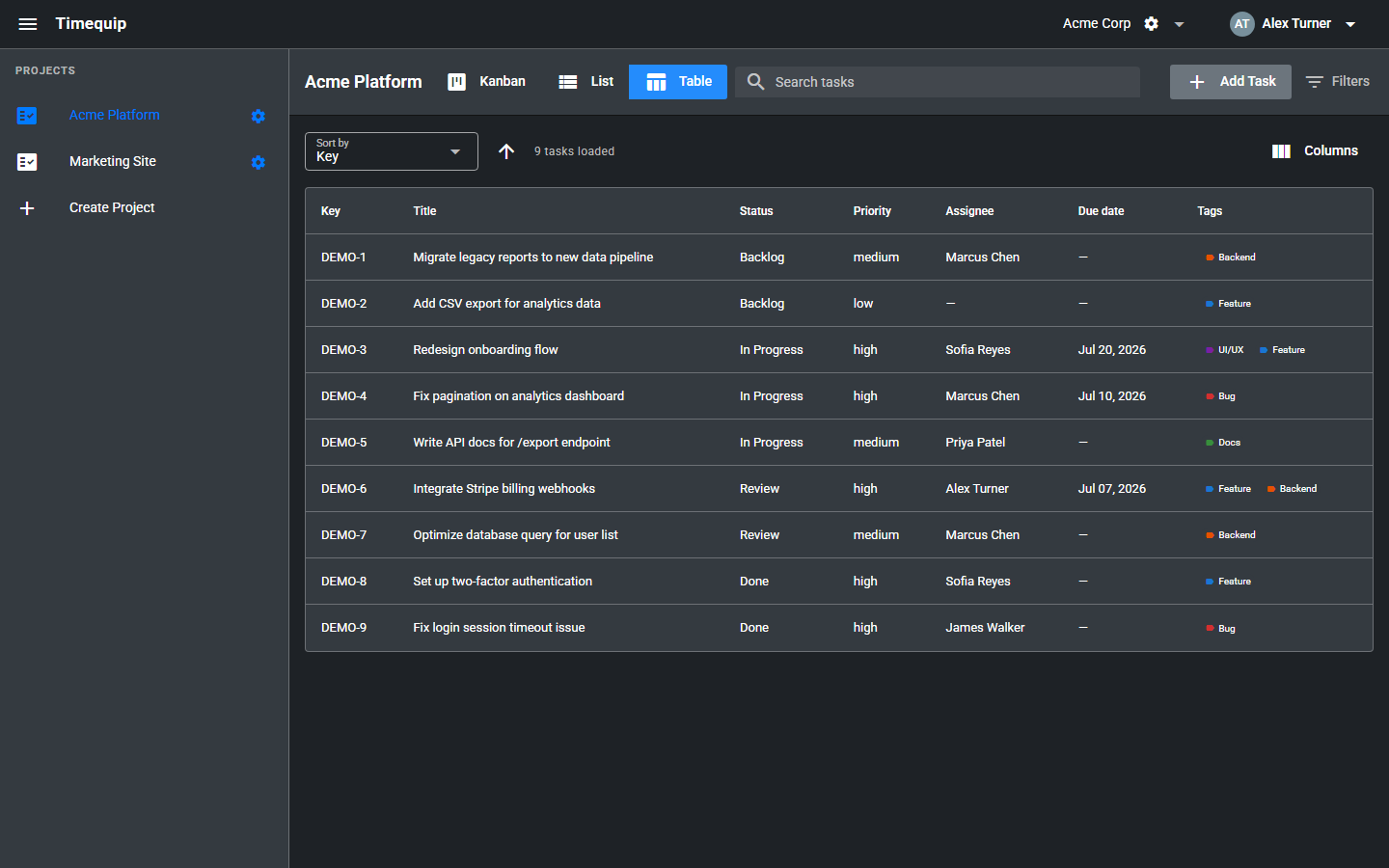
Table places task fields in columns so you can compare status, ownership, priority, and deadlines across several tasks. The default columns are Key, Title, Status, Priority, Assignee, Due date, and Tags.
Choose visible columns
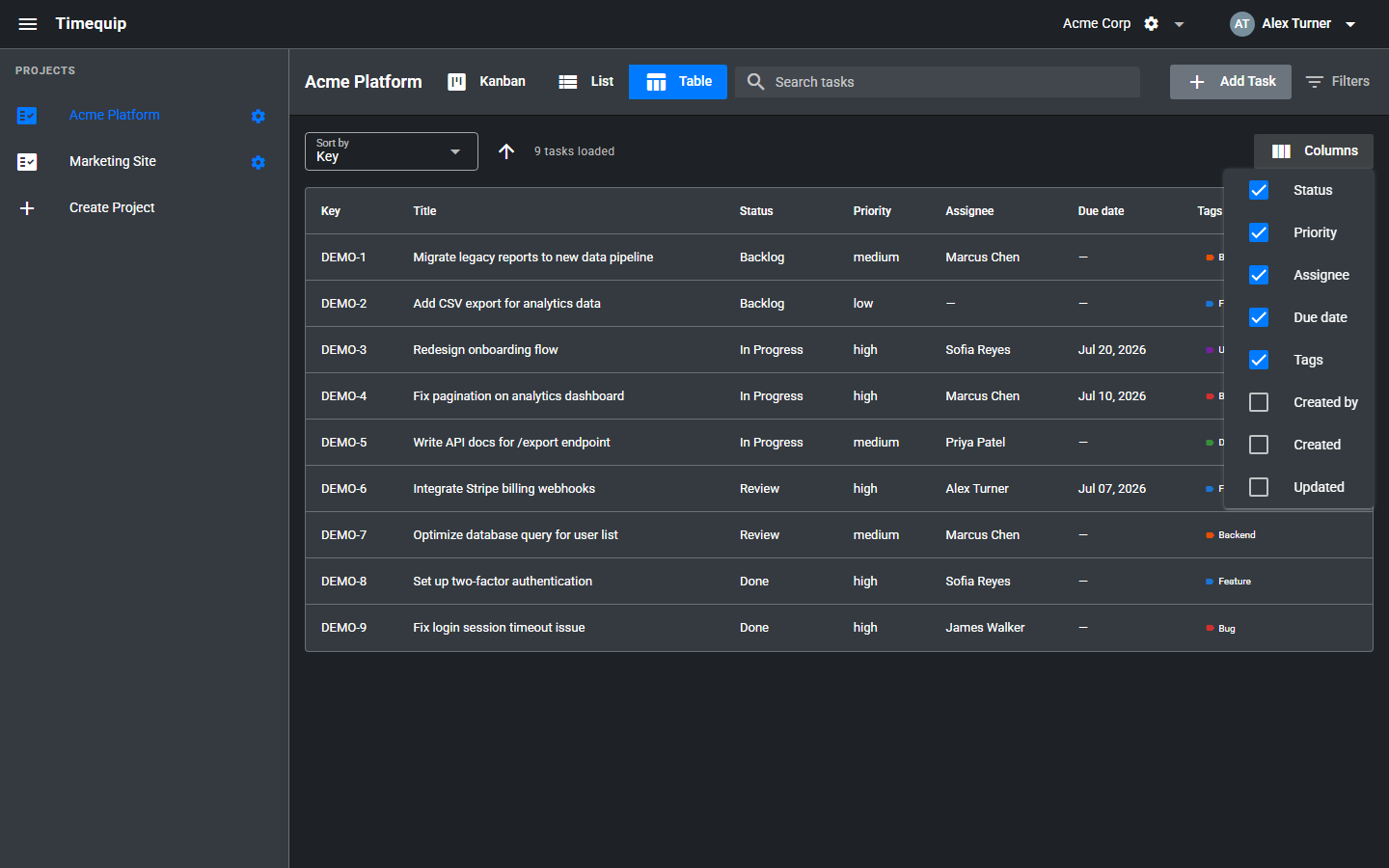
- In Table view, click Columns.
- Select the fields you want to show, or clear a checkbox to hide a field.
- Close the menu to continue reviewing tasks.
Key and Title always stay visible. You can show or hide Status, Priority, Assignee, Due date, Tags, Created by, Created, and Updated. Choosing columns changes the display without changing task data.
Search, filter, and load more tasks
Search and filters work across Kanban, List, and Table. Search by task title, or filter by creator, assignee, and tags. See Using Task Tags and Board Filters for details.
List and Table show how many tasks are loaded. Sorting applies to those loaded tasks. When additional pages are available, click Load more tasks to include the next tasks from each status; newly loaded tasks join the selected sort order.
Open and update a task
Click a task card, list row, or table row to open its details. On desktop, the details open in a dialog; on smaller screens, they open on a dedicated task page. Your permissions are the same in every view. See Creating & Assigning Tasks and Project Roles: Leader, Editor, Viewer.
In List and Table, users with task creation access can use Add Task in the header. The new task starts in the first project status. In Kanban, use the button in the column where it should start.
Remember your preferred view
Timequip saves your selected view and visible table columns in this browser and reuses them when you return or open another project. These preferences are local to the browser; they do not change the view for your teammates. A different browser or cleared site data starts with Kanban and the default table columns.