Task Comments and Email Notifications
Task comments keep conversations connected to the work they are about. Add updates, questions, decisions, and handoff notes directly inside the task.
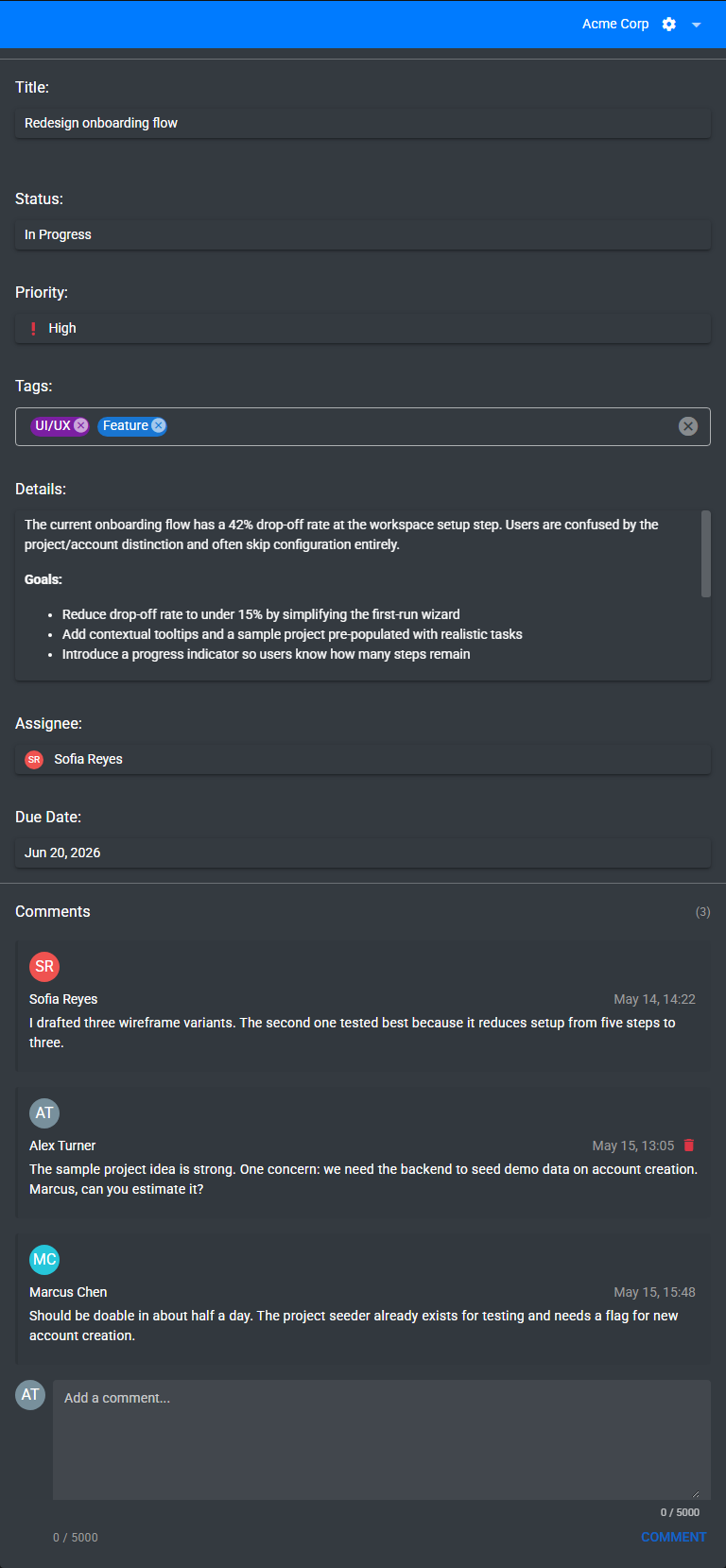
Add a comment
- Open the task details panel.
- Scroll to the Comments section.
- Type your message in the comment box.
- Click Comment.
Comments must contain text and can be up to 5,000 characters long.
Delete a comment
You can delete comments you created. Users with edit access to the task can also remove comments when project cleanup is needed.
When emails are sent
- Task assigned: The assignee receives an email when a task is assigned to them.
- Task updated: The assignee can be notified when important task fields change.
- New comment: The assignee can be notified when someone adds a comment to the task.
- Due date reminder: Timequip can send reminders for tasks that are approaching their due date.